
Set Up Your First Pipeline
A sales pipeline is a set of stages that deals move through from start to finish.
In ZoriCRM you can create multiple pipelines for different processes (e.g., “Sales”, “Renewals”, “Partners”) and set one of them as the default.
Where to find pipeline settings
Open the main menu: Settings → Deal Pipelines
The page is split into two parts:
- Left - the list of pipelines and a + Add pipeline button
- Right - the selected pipeline’s editor: a Set as default button (if it’s not already the default) and a list of stages
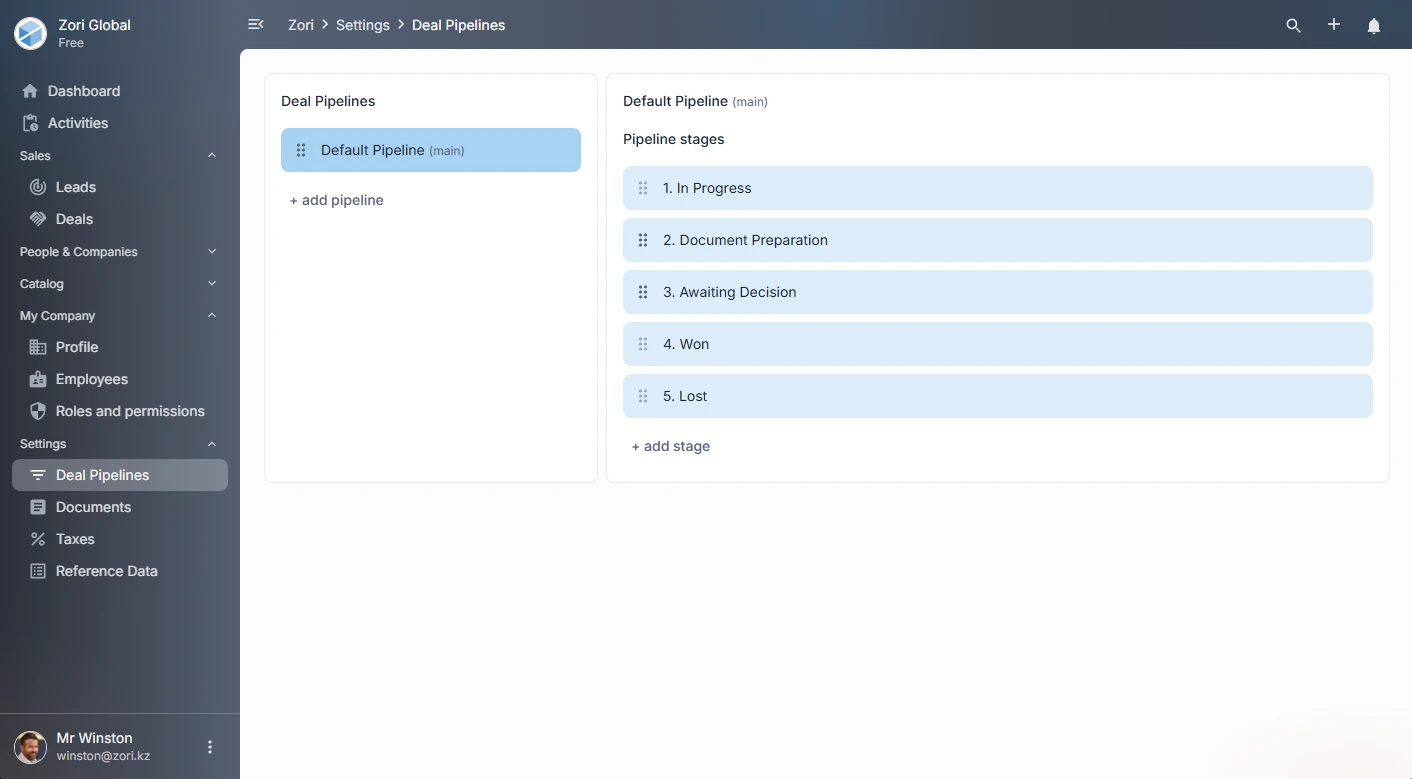
Default pipeline
After creating a company, ZoriCRM automatically generates a starter pipeline with pre-set stages based on your chosen content language.
For example, the default pipeline may include stages like:
- In progress
- Awaiting decision
- Successfully completed
- Cancelled
Setting up pipeline stages
Select a pipeline from the left - the stages will appear on the right in the Pipeline stages panel.
Available actions:
- Add a stage - click the + Add stage button below the list
- Rename a stage (✏️)
- Reorder - drag by the handle icon on the left
- Delete a stage (🗑️) - only possible if no deals are currently in that stage
All changes take effect immediately.
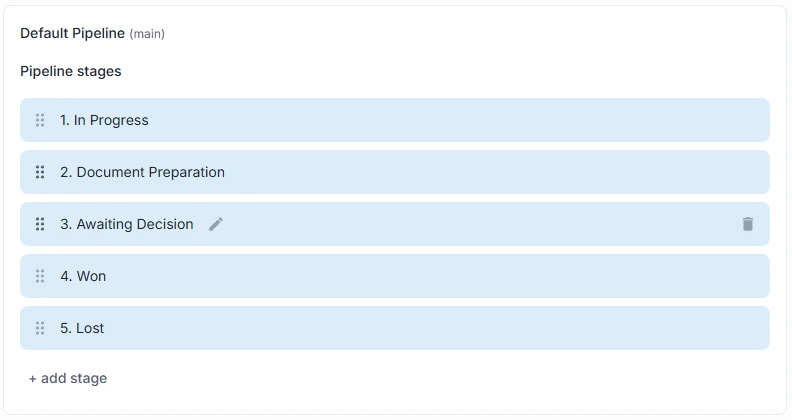
Locked stages
Some stages cannot be moved:
- The first stage is locked in place - it can’t be dragged, but can be renamed.
- The two final stages are always at the end: “Successfully completed” and “Cancelled”. These can’t be reordered or dragged, but their names can be changed.
How deal closing works
When you close a deal, the system asks you to choose an outcome:
- Successfully completed
- Cancelled
The deal list shows the final stage (e.g., “Successfully completed”), not a generic “Closed” label.
Additional: multiple pipelines
Adding a new pipeline
Click + Add pipeline in the left panel.
The pipeline is created immediately and becomes available to all users in the company. Stages are pre-populated automatically based on your company’s country and content language.
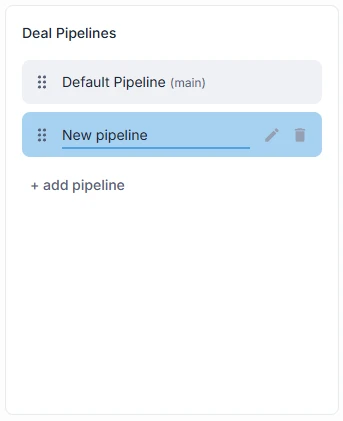
Default pipeline
The pipeline set as “default” takes priority in the interface - it appears first in lists and is used in some widgets and quick-select menus.
To set a pipeline as the default:
- Select it from the left panel
- Click Set as default
- Confirm in the dialog