
Create a Deal
A deal in ZoriCRM is a card that tracks a sales process: client, amount, currency, assignee, contacts, and notes. Deals are always managed within a selected pipeline.
Where to find deals
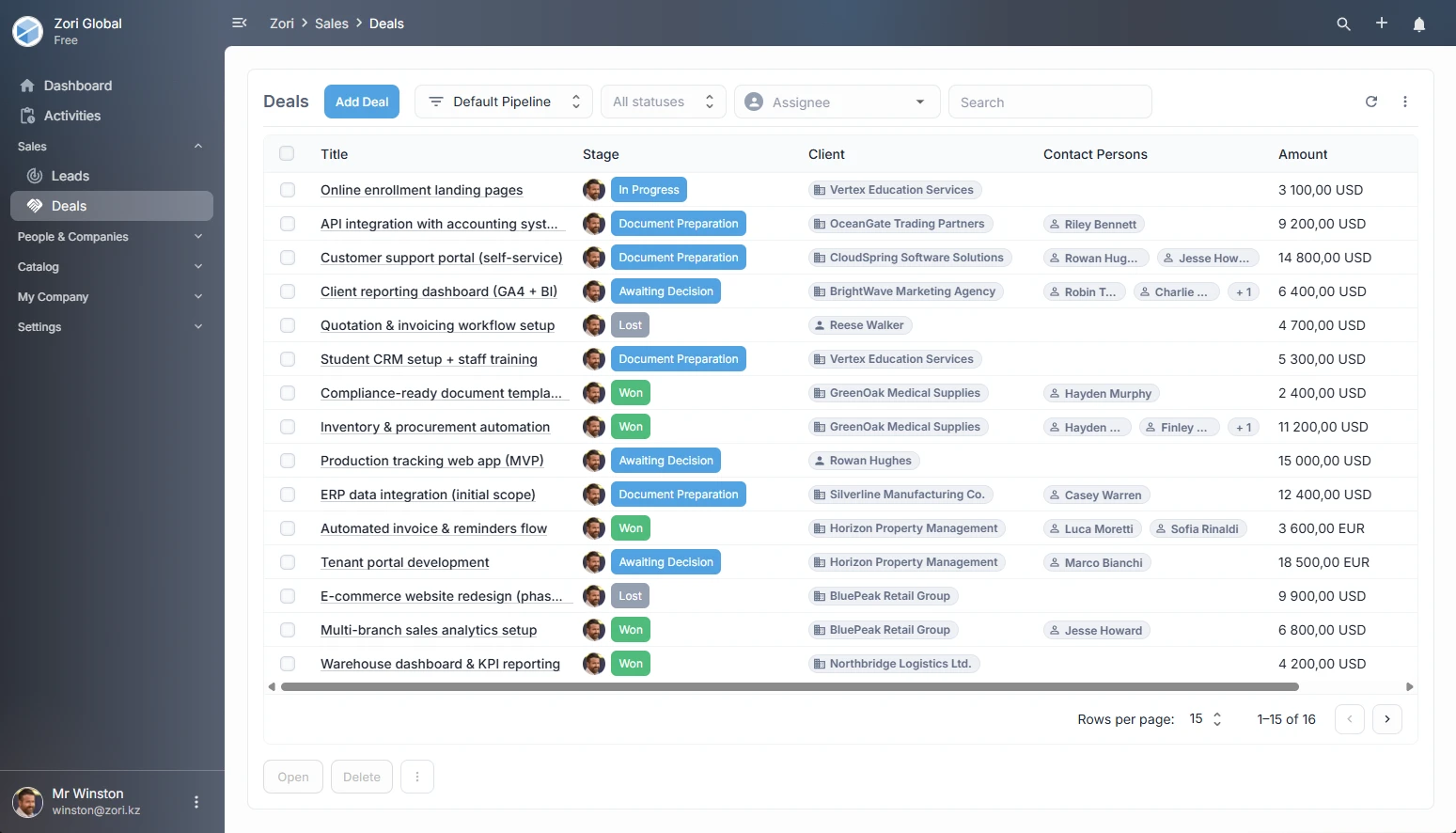
Open Sales → Deals
The pipeline selector is located next to the Add button.
By default, the pipeline marked as default is selected when you open the page.
Creating a deal from the Deals section
- Select the pipeline you need from the selector (if you have more than one).
- Click Add.
- The deal creation form will open as a modal.
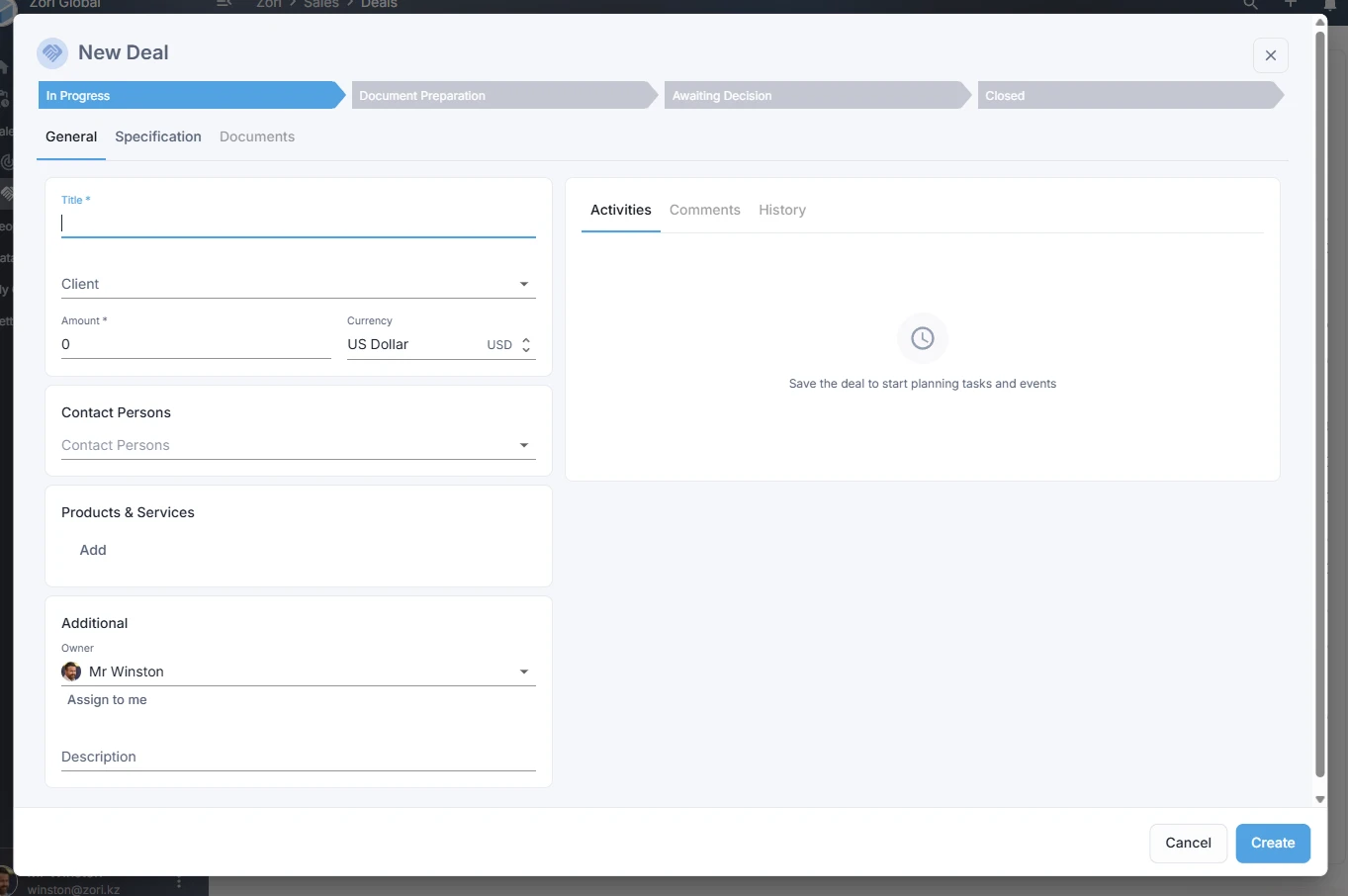
The deal is created in the first stage of the selected pipeline. You cannot change the stage during creation.
Fields on the General tab
Name (required)
The only field you must fill in manually.
Client (optional at the start)
You don’t have to assign a client when creating the deal - you can link one later.
A client can be selected as an individual or a company. If the record doesn’t exist yet, you can create it directly from the dropdown - a creation form will open, and once saved, the new record will be selected automatically.
Amount and currency
- You can enter the amount now or add it later.
- You can set the currency at the point of deal creation.
Contacts
You can add one or more individuals as contact persons for the deal.
If the person doesn’t exist yet, you can create them directly from the dropdown.
Assignee
By default, the person creating the deal is set as the assignee. You can change this if needed.
Description
A free-form multi-line field for context, notes, and agreed details.
Specification tab
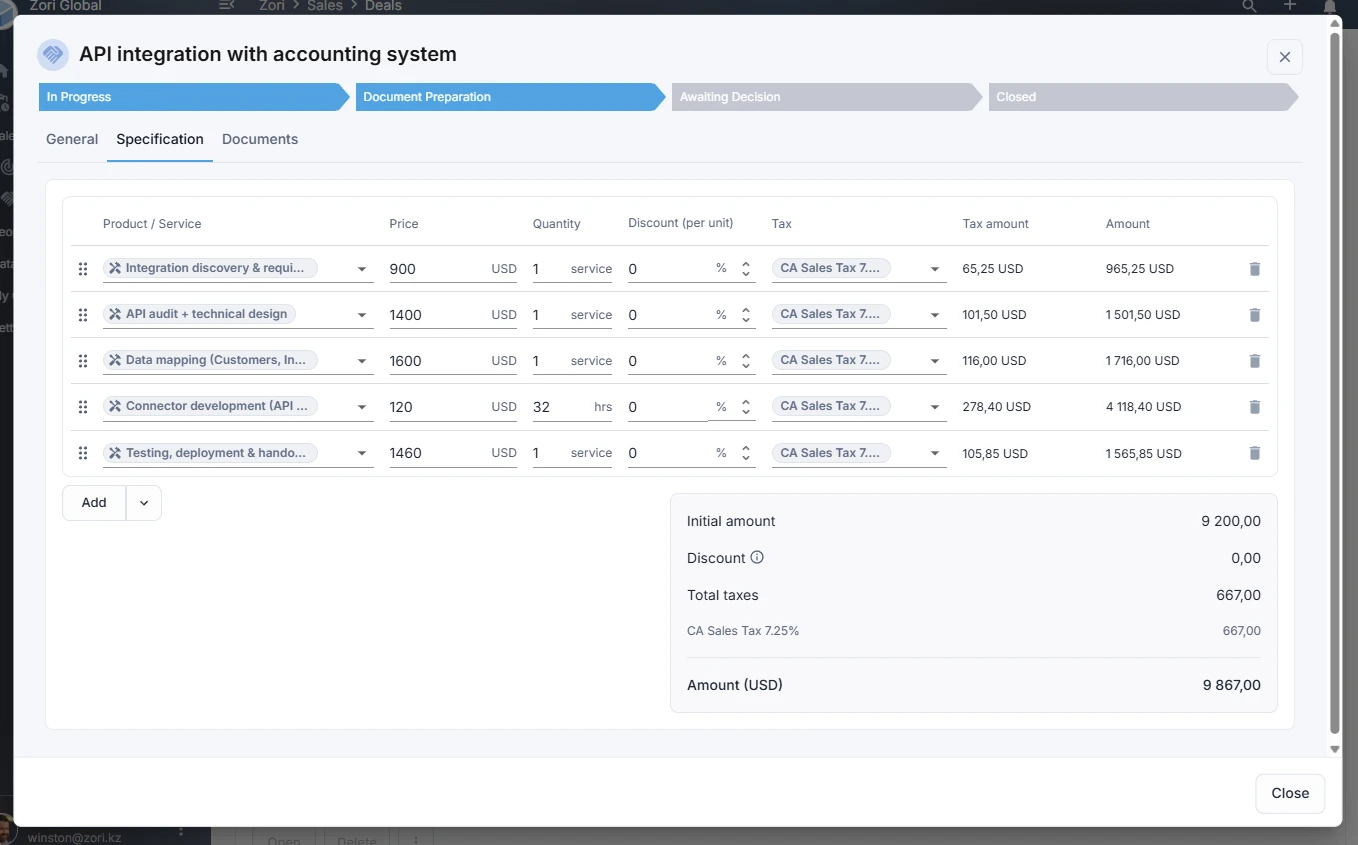
On the Specification tab, you can immediately add products and services, apply taxes and discounts. New products and services can also be created directly from the dropdown lists.
Creating a deal via the ”+” button
Click ”+” → “Deal” in the top menu.
- If you have one pipeline, the creation form opens immediately.
- If you have multiple pipelines, the “Deal” item expands into a submenu - select the pipeline, and the form will open.
What happens after creation
Click Create - the deal is saved and you stay on its card. After saving, the Documents, Activities, Comments, and History tabs become available.
From here you can plan tasks, calls, and meetings, fill in the specification, create deal documents, and move it through pipeline stages to close.