
Add an Individual or Company
In ZoriCRM, individuals and companies are managed separately - as a contacts directory that you can later link to deals (e.g., as a client).
You can add an individual or company in three ways:
- from the People & Companies section (via the list)
- directly from a deal - from the client or contacts field
- by clicking the ”+” button in the top-right corner of the screen - for quick creation
Adding an individual
- Open People & Companies → Individuals
- Click the Add button above the table
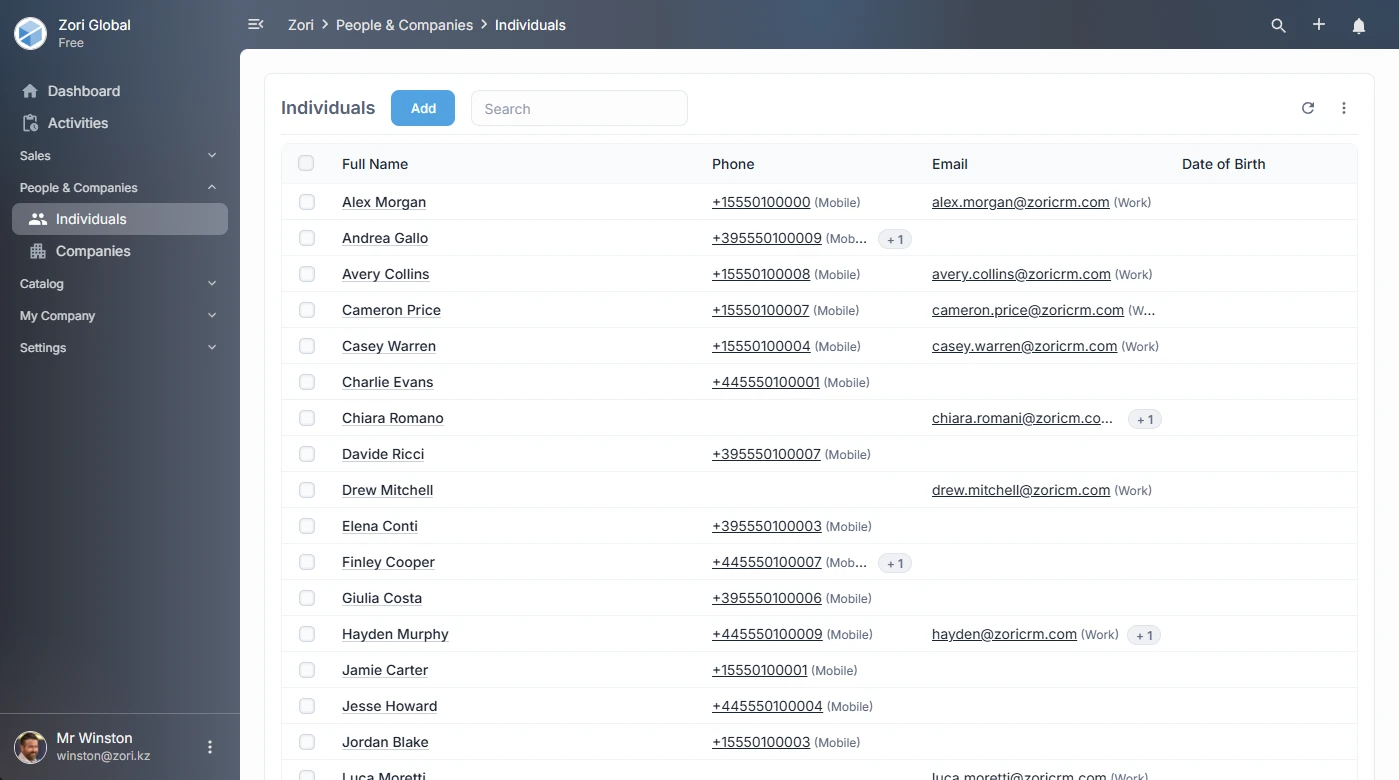
A creation form will open as a modal with tabs.
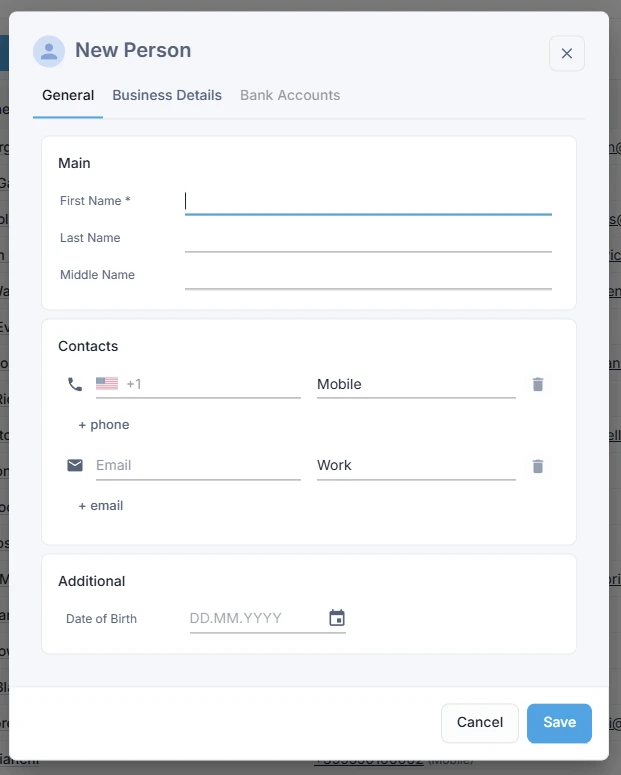
General tab
Fill in the basic details:
- First name (required)
- Last name
- Middle name
- Date of birth (optional)
- Contacts block:
- one or more phone numbers (with type: mobile / work / home, etc.)
- one or more email addresses (with type: work / personal, etc.)
Click Save - the form will close and the list will update automatically.
Business details tab (for documents)
The Business details tab lets you fill in information that can be auto-populated in deal documents, such as:
- Tax ID
- Full name
- Address
- Phone number
If a Tax ID is filled in, it will be shown in the individual’s card below their name for easy reference.
Adding a company
- Open People & Companies → Companies
- Click the Add button above the table
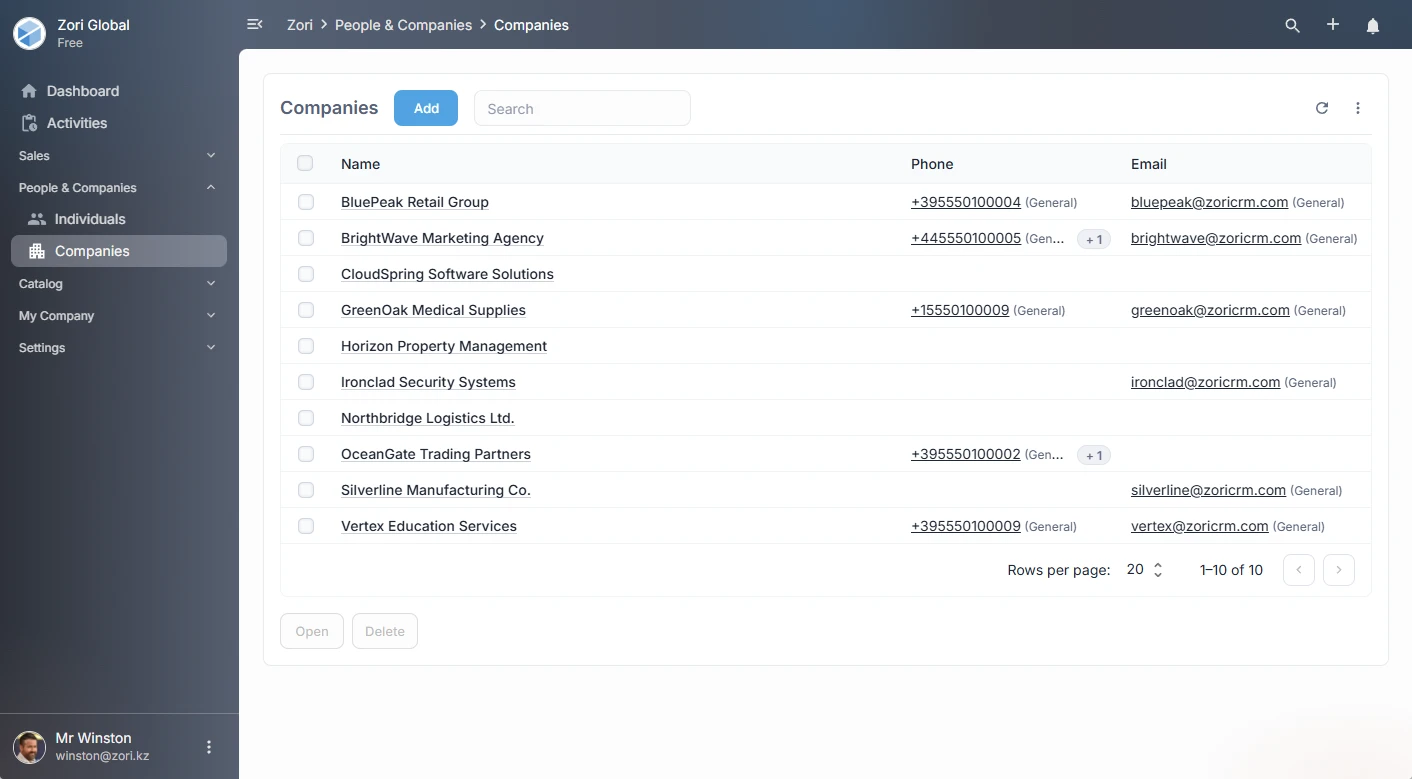
A creation form will open as a modal with tabs.
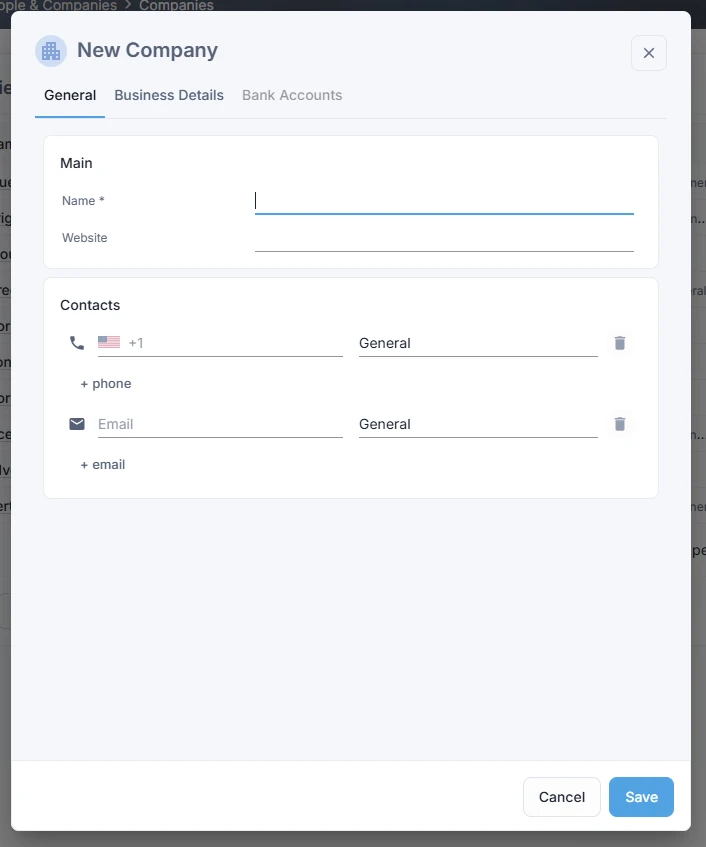
General tab
- Name (required) - a short display name (doesn’t have to be the legal name)
- Website (optional)
- Contacts block:
- phone numbers (with type)
- email addresses (with type)
Click Save - the form will close and the company list will update automatically.
Business details tab
On the Business details tab, select the organization type:
- Sole trader
- Legal entity
After selecting, the system will show the relevant set of fields (e.g., for a legal entity - registration number and full legal name).
Phone and email types
Contact type labels (e.g., “Work”, “Personal”, “Mobile”) can be customized in:
Settings → Reference Data → Contact Types
Duplicate detection
If the system detects potential duplicates while creating or editing a record, a notice will appear in the form:
- “Similar individuals found”
- or “Similar companies found”
Clicking it opens a list of matches, where you can navigate to the existing records.
Minimum required for a quick start
To keep things moving, you only need to fill in:
- First name for an individual
- Name for a company
Contacts and business details can always be added later.