
Registration & Company Setup
To get started with ZoriCRM, you need to create an account and set up a company workspace.
The process takes just a few minutes and has two steps:
- Create an account
- Set up your company
Step 1. Go to the login page
Navigate to app.zoricrm.com
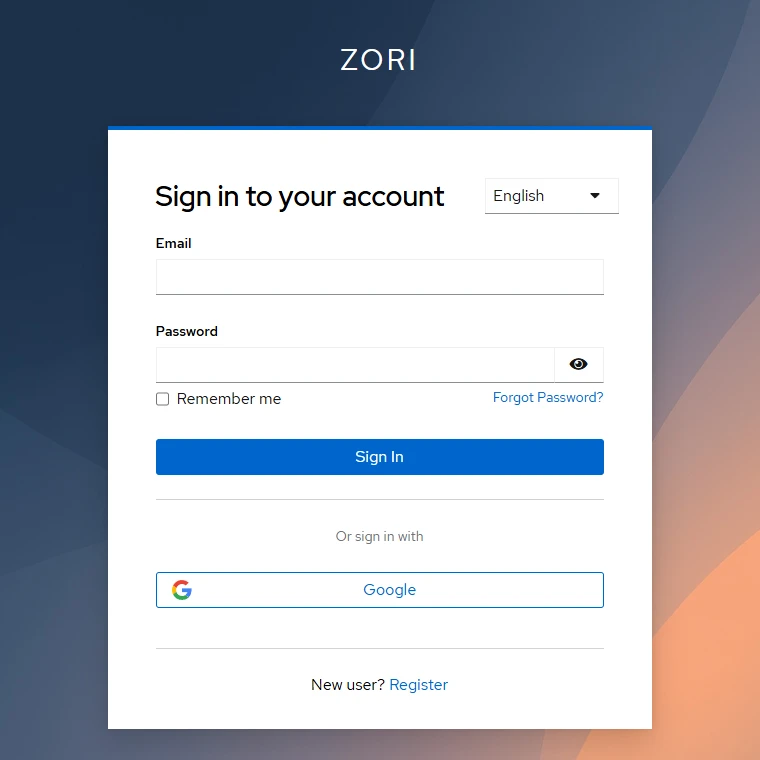
If you’re not signed in, you’ll be automatically redirected to the login page.
Choosing the interface language
In the top-right corner of the login page, you can change the interface language.
The selected language will be used automatically in the app after you sign in.
Sign-in options
Three options are available on this page:
1. Email and password
If you already have an account, enter your email address and password.
2. Sign in with Google
Click the Google button in the “Sign in with” section.
You’ll go through the standard Google authorization flow. If an account with that email already exists - you’ll be signed in to it. If not - a new account will be created automatically.
3. Manual registration
Click the Register button if you don’t have an account yet.
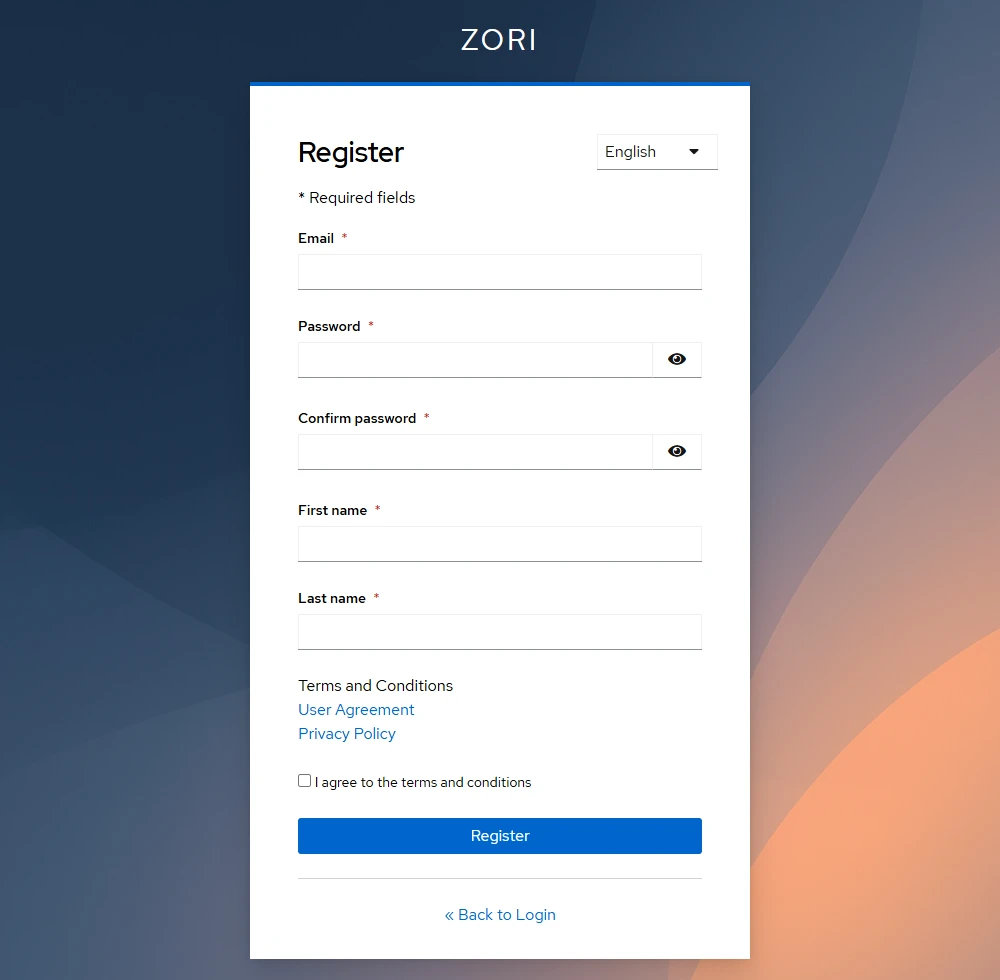
After registering, you’ll receive a confirmation email with a link to verify your account.
Once confirmed, you’ll be automatically redirected to the company creation page.
Step 2. Set up your company workspace
After registration, you’ll see the welcome screen at app.zoricrm.com/welcome/create.
Click Create company workspace to continue.
Basic company details
Fill in your company settings on this step.
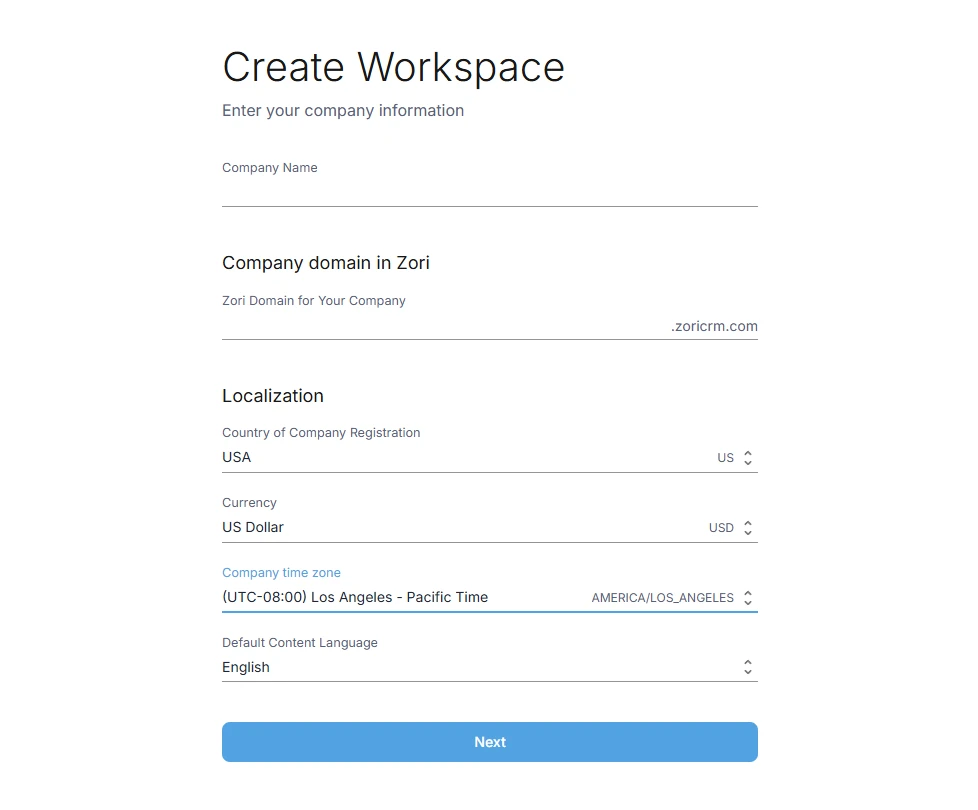
Company name
A short name that will appear in the interface and when switching between companies. This doesn’t have to be your legal business name.
Zori domain
Your company’s subdomain in the .zoricrm.com zone. For example: mycompany.zoricrm.com.
Localization
The “Localization” section sets the core parameters for your company.
Country of registration
Select the country where your business is registered. This may affect tax settings and document formats.
Currency
Your company’s base currency.
- Deals are created in this currency by default
- Product catalog prices are set in this currency
- Aggregated report data is shown in this currency
The base currency cannot be changed after the company is created. You can still run individual deals in any currency, with conversion based on current exchange rates or rates set manually.
Time zone
The base time zone your company operates in.
Content language
The language in which the system’s initial data will be created: deal stages, reference lists, and other default elements.
Review your details
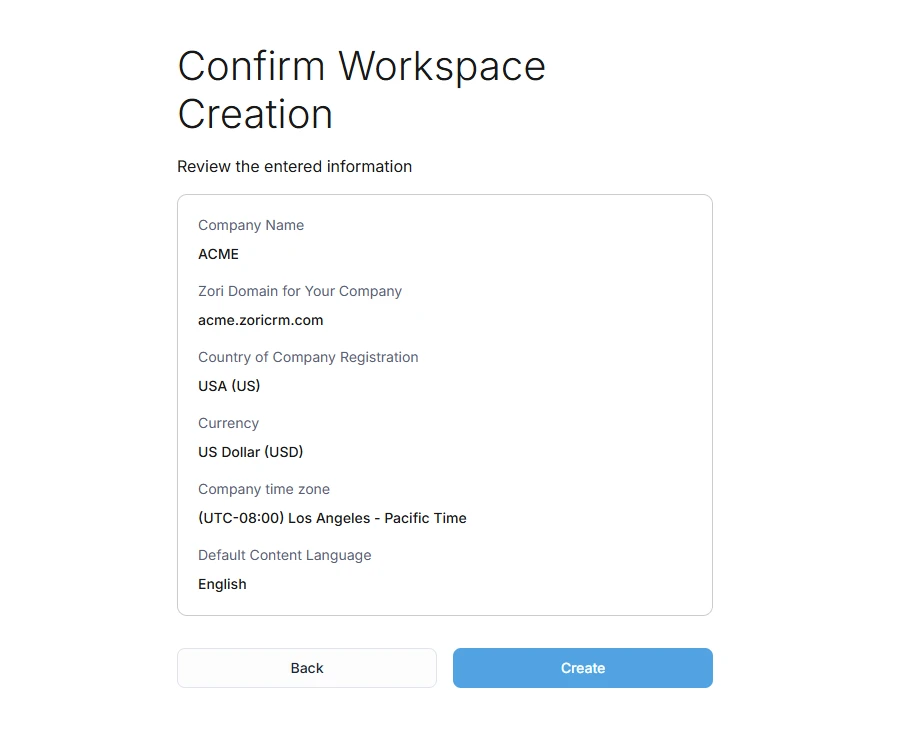
After clicking Next, you’ll see a summary screen showing all the settings you’ve entered.
Review the details and click Create.
Done
After your company is successfully created, you’re automatically taken to its workspace - the dashboard.
You’re now ready to set up your pipeline, add clients, and start creating deals.