Deal Documents
In ZoriCRM you can generate documents directly from a deal - for example, a quote or an invoice. Documents are built from deal data, client details, and the business information of both parties.
Before creating documents
To make sure standard document templates fill in correctly, check the following in advance:
- Your company’s business details. Fill in your company’s details - they appear in the header and details sections of documents. Go to My Company → Profile, Business Details tab.
- Your company’s bank accounts (important for invoices). The invoice template requires at least one bank account on file - its details are inserted into the document. Go to My Company → Profile, Bank Accounts tab.
- Client’s business details. Fill in the business details on the individual or company card (tax ID, address, etc.) for the deal’s client, so they populate correctly in the document.
Your company’s business details and bank accounts are typically set up once and reused across all documents. Client details are filled in as you add new individuals and companies.
Where to find documents
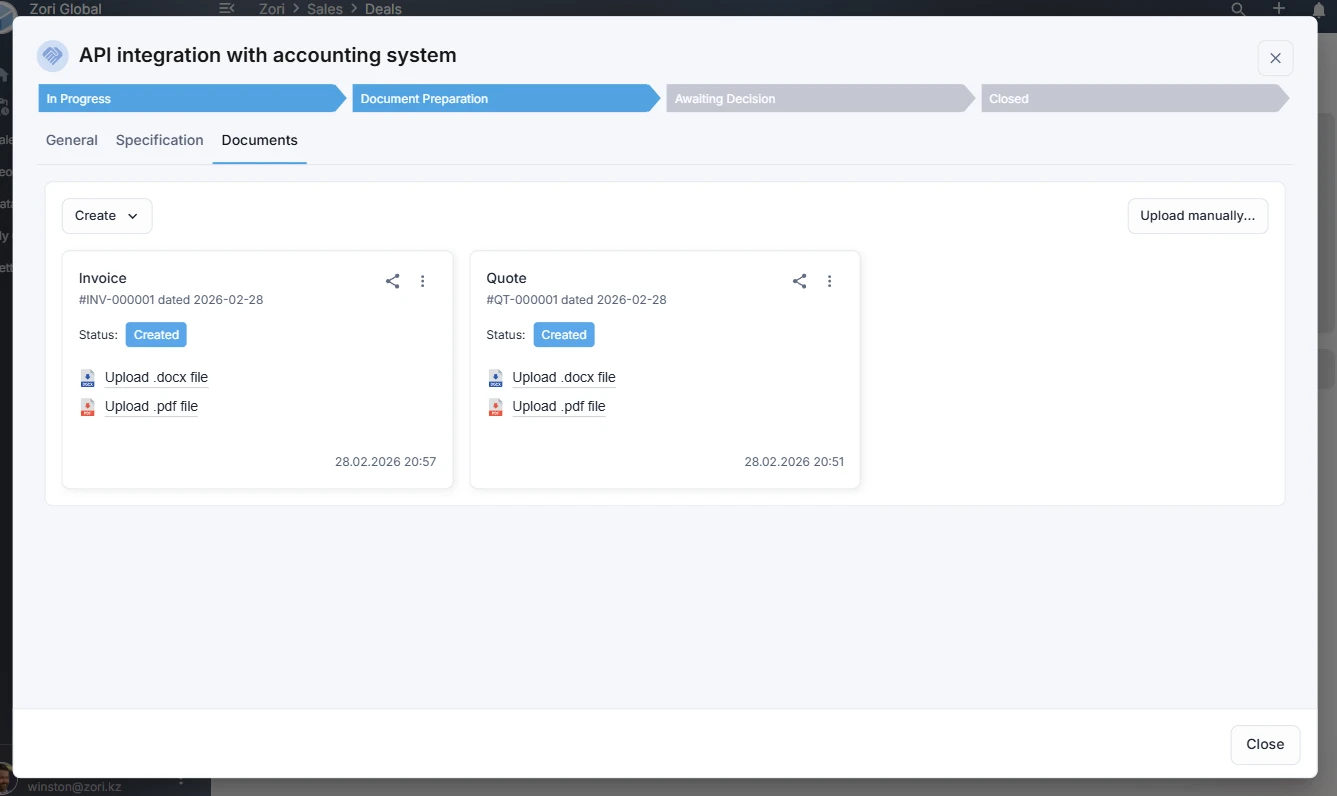
Open a deal and go to the Documents tab.
Creating a document
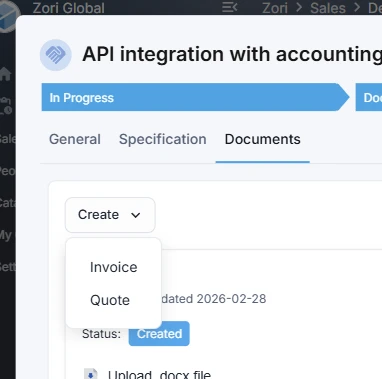
On the Documents tab, click Create. A menu with available templates will appear. The default templates are:
- Quote
- Invoice
Select a template - a dialog will open with the document parameters and a confirmation step.
In addition to creating documents from templates, you can click Upload manually on the Documents tab to attach an existing file. Manually uploaded documents appear in the same list and are marked accordingly.
Document parameters
Quote
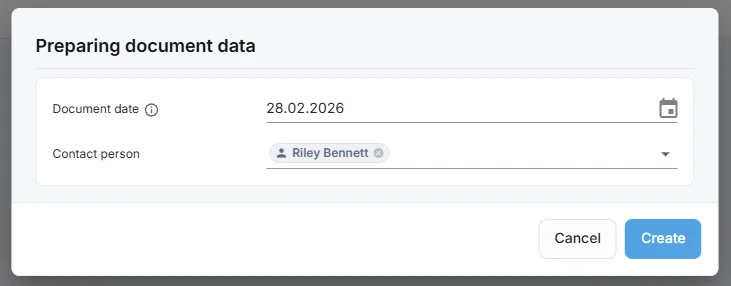
Before generating, you can set:
- Document date - defaults to the current date in the company’s time zone
- Contact person (optional) - defaults to the first contact person on the deal (the person the quote is addressed to)
Invoice
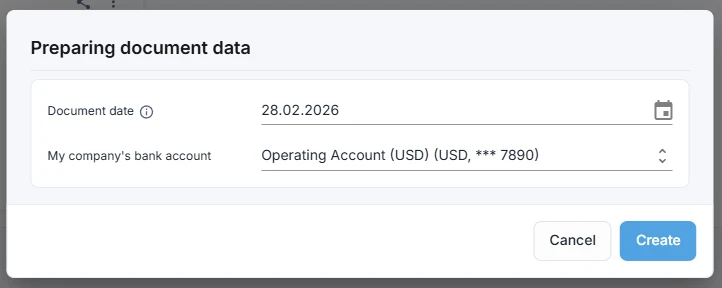
Before generating, you can set:
- Document date - defaults to the current date
- Bank account - shown if your company has multiple accounts (defaults to the account marked as Default)
What goes into the document and how amounts are calculated
Documents are generated from the deal data and its specification.
- The currency is set on the deal’s General tab and applies to the specification.
- If products or services are added to the specification, the deal amount is calculated from the specification, and manual editing of the amount on the General tab becomes unavailable.
You can create a document even with an empty specification, but with standard templates this will typically result in empty tables and zero amounts.
Where the created document appears
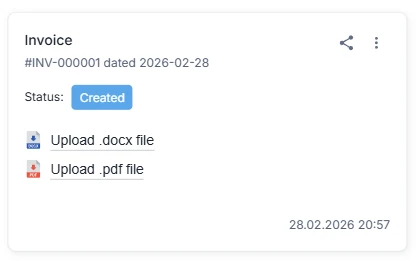
After creation, the document appears on the Documents tab as a mini-card with key information.
Available actions for the document:
- Change the document status
- Share… (public link)
- Action menu: Create task, Delete
The document is generated in two formats simultaneously - PDF and DOCX - and is available right after creation.
How to share a document
Click Share…
In the dialog, click Enable link sharing.
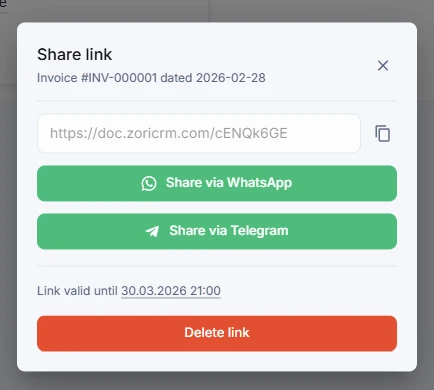
Copy the link to the published document, or choose how to send it:
- Share via WhatsApp
- Share via Telegram
The selected app will open with a pre-filled message and link - just choose a contact and send.